For house builders' design teamsChecking outsourced drawings and managing findings
Insight Home Design
Check the drawings from your outside designers — with the article of law behind every finding.
Draw in the CAD you use today. Check, get it fixed, keep the record with Insight Home Design.
Just drop in the drawings from your outside designer (Jw_cad, DXF, PDF). Findings appear as numbered marks on the drawing, with the law and the values behind them. Fix findings on the spot, and draft floor plans too.
The free trial gives you every feature for 30 days after installation (no sign-up). Purchase and pricing are by quotation.
If you cannot download it (for example, because of company restrictions), please contact us.
Current version 1.0.1Version history
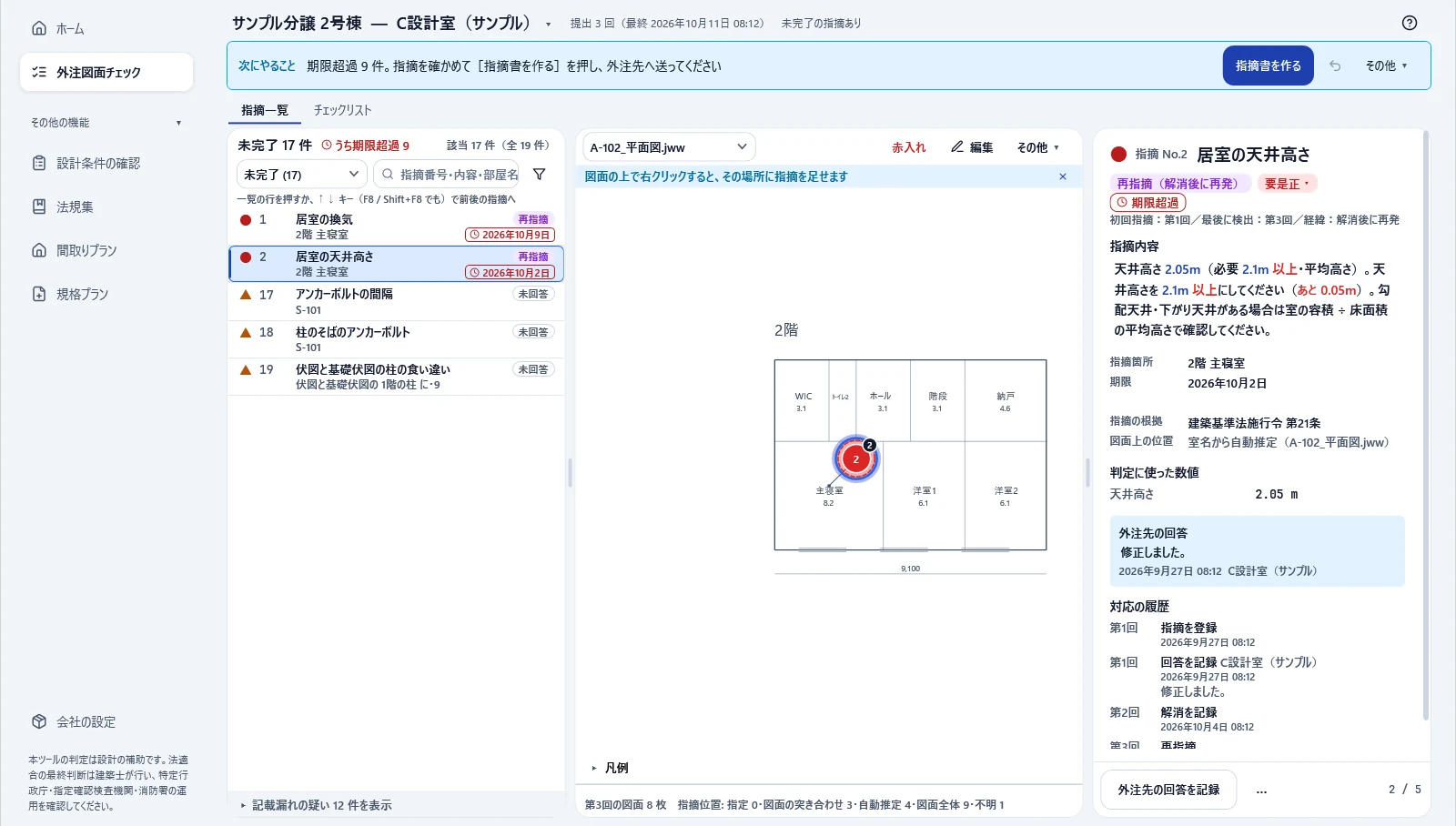
- 1Findings list
- 2A numbered mark on the drawing
- 3The law and the values used
- 4Make the report for the designer
Version 1.0.0 (Japanese screen). All data is a fictional demo project.
From red pens and side-by-side checking to a list with grounds.
Nobody changes their drawing tool. What changes is checking, returning and following up.
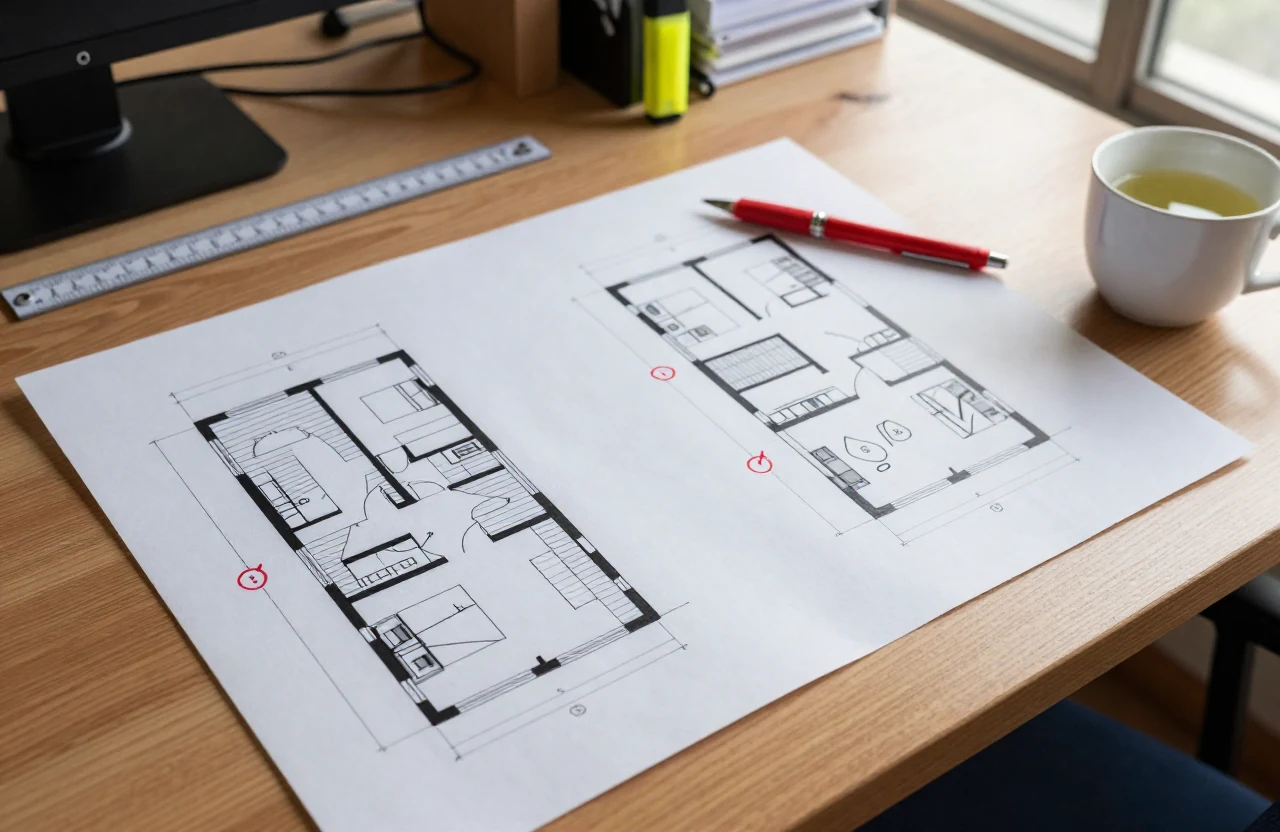
Lay the floor plan, area table and elevations side by side, mark them in red, send an e-mail — and compare again at the next submission.
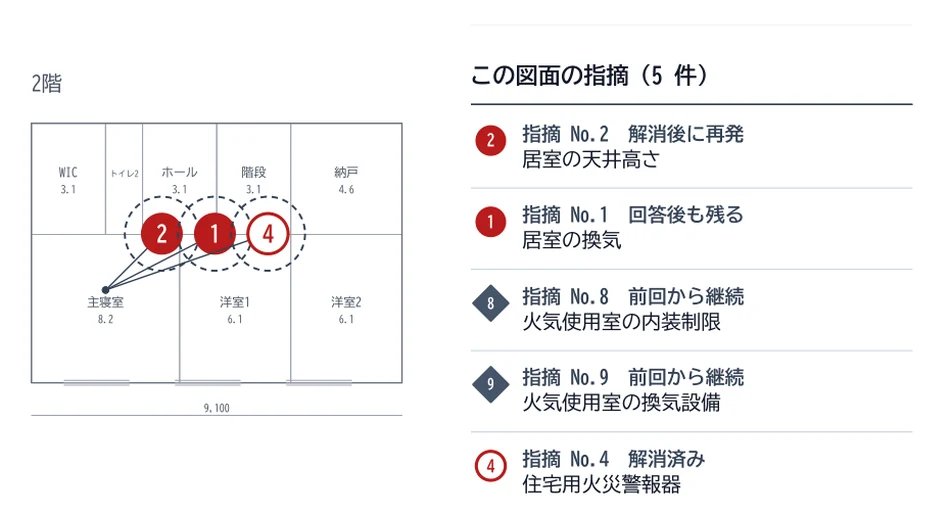
Drop the drawings in and findings appear as numbered marks, with the law and the values. On resubmission, fixed and recurring items are sorted for you.
WHO DOES WHAT
The software takes on the checking work.
People look only at the design judgement.
Recalculating figures, matching drawings against each other, applying the law, and keeping the record of the back-and-forth with your outside designers — the software takes these on. What designers look at is the design judgement.
What Insight Home Design takes on
- RecalculationArea, coverage and floor-area ratios, daylighting — recalculated from the values on the drawings.
- Mismatches between drawingsFigures and windows across plans, area tables, elevations and envelope calculations. Columns and shear walls between the foundation plan and the floor plan.
- Applying the lawAbout 60 provisions of the law, recalculated with the article cited — the article, paragraph and item behind it and how far short the drawing is ("○ mm to go"). Items not yet verified against the original text, such as structural notifications, are reported as "to be confirmed".
- Missing notes and leftoversDrawing type, north arrow, scale, energy-efficiency notes. Project names and numbers left in the title block from an earlier job.
- Quantities by the legendOutlets, switches, doors and sashes counted into a take-off.
- The back-and-forthThe findings report (PDF) and the Excel answer sheet in one go. On resubmission, fixed and recurring findings are sorted automatically.
- The recordPer designer: how often findings recur and how many rounds until they are fixed.
What people check
- Exterior works and the site as it is
- Foundation detailing
- Electrical layout (where outlets and switches go)
- How people will live there (layout, doors, storage — design judgement)
Anything uncertain is marked “to be confirmed”; estimates are never reported as compliant. Final judgement is made by a licensed architect.
EDITABLE
What comes out, you can fix on the spot.
You do not have to send the software's findings as they are. Fix, drop or add them on screen — and make small drawing fixes without going back to your CAD.
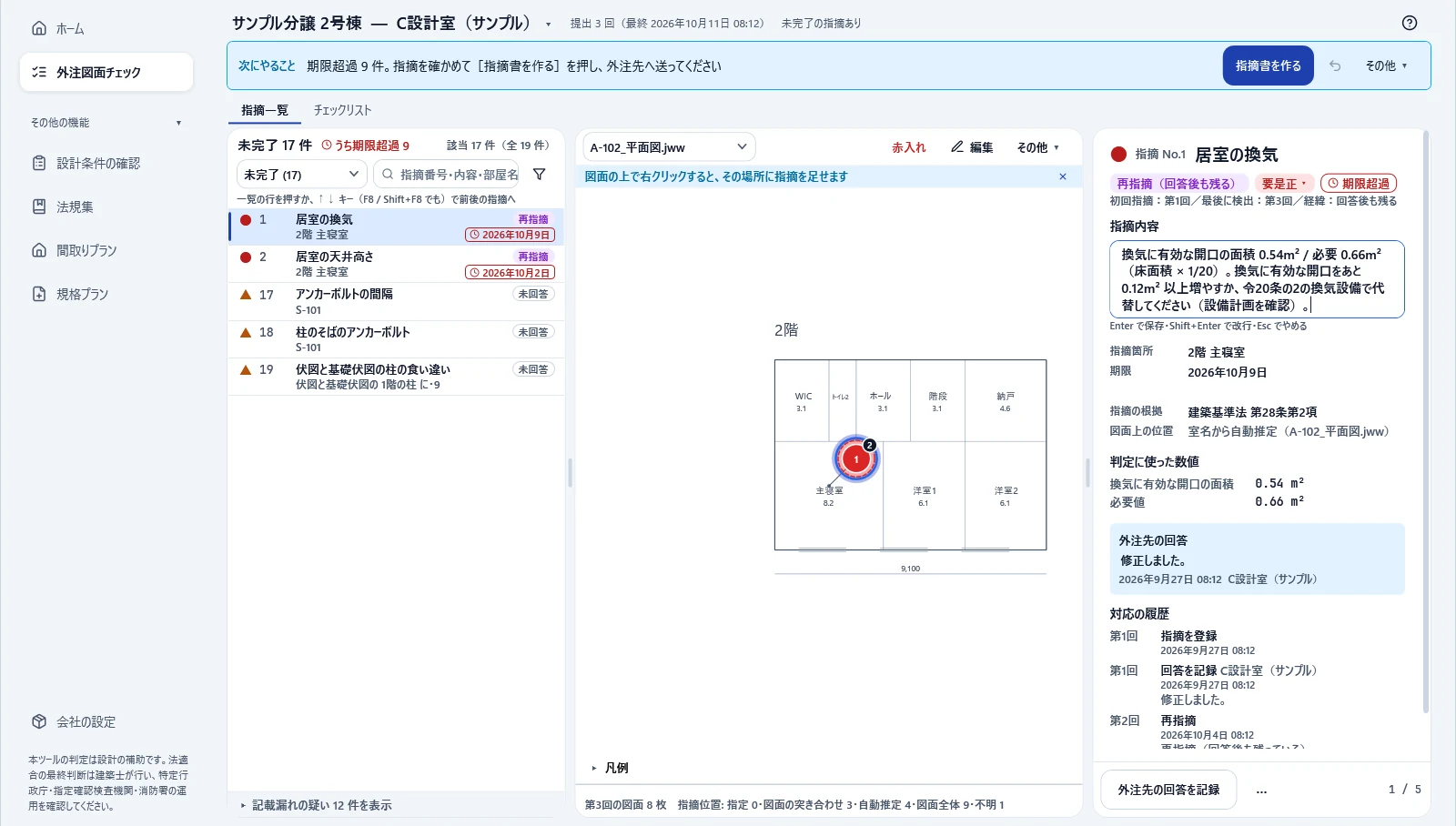
Fix, exclude and add findings
- Click a finding's text, severity, grounds or location on screen and edit it in place.
- Exclude a finding you do not need; excluded findings never appear in the report.
- Right-click on the drawing to add a finding at that spot.
- Everything can be undone with Ctrl+Z. Edited findings are not overwritten by the software at the next submission.
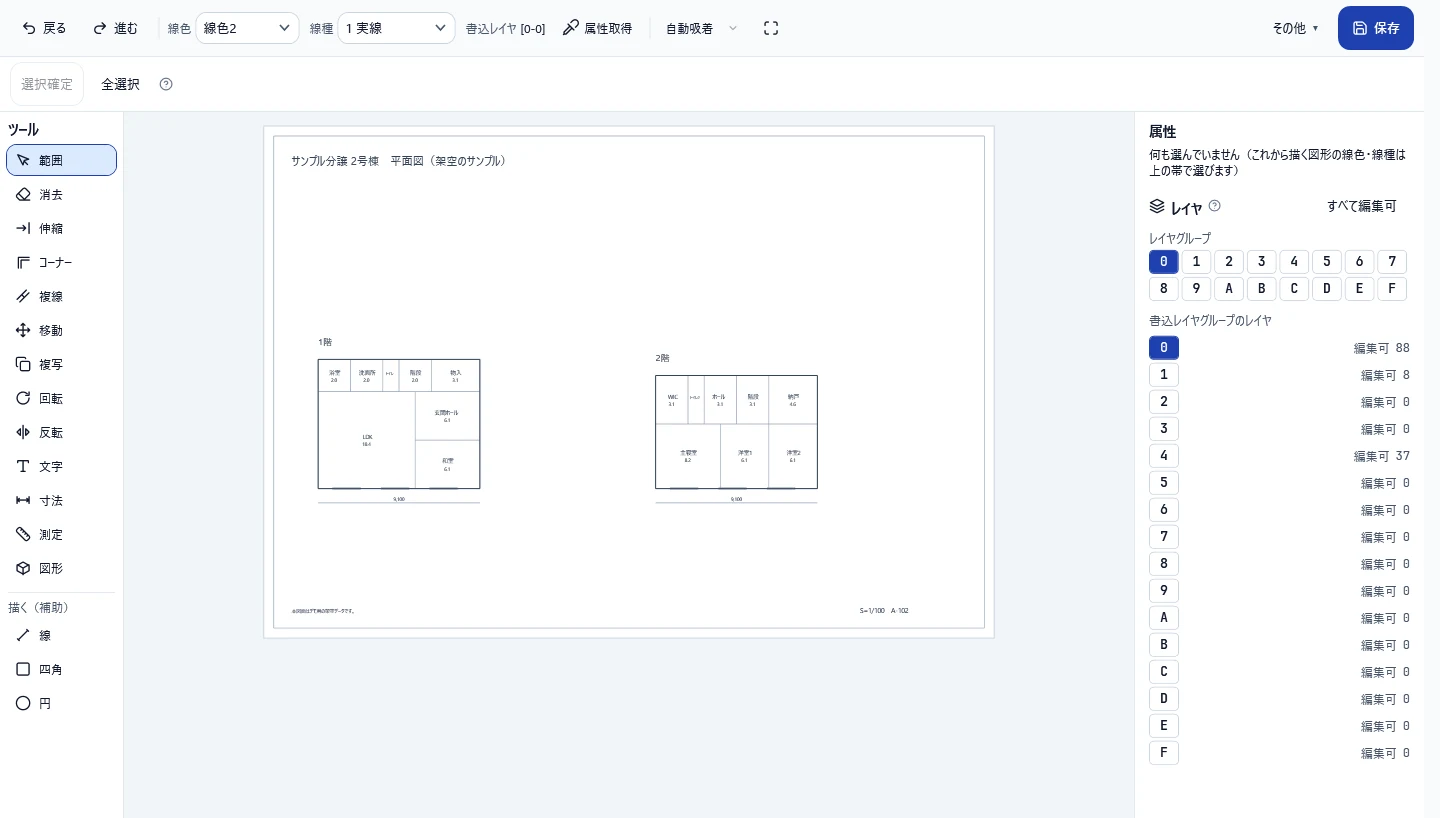
Fix the drawing
- Small fixes to text, dimensions and lines use the same operations as Jw_cad (left = free point, right = snap point).
- Or open it in Jw_cad, fix and save there — it is reloaded automatically.
- The fixed drawing is re-checked as a new version. The original submission is never overwritten.
Version 1.0.0 (Japanese screens). All data is a fictional demo project.
LANGUAGES
Chinese and Vietnamese too. Your partners can check their own drawings before sending.
Many builders outsource drafting to design offices in China and Vietnam. Besides checking on arrival in Japan, the drafting side can check against the same criteria before sending. The back-and-forth of findings and answers can be followed within the same project.
On the ordering side (Japan)
- Screens, issue sheets, reply Excel, quantity takeoffs and help are available in Chinese (Simplified) and Vietnamese.
- Issue sheets can be bilingual: the Japanese original next to the translation, so both sides read the same findings.
- What is translated: the finding texts, the sheet headings and the screens. Your checklist items, law names, article numbers and room names stay in Japanese, and the checks themselves stay Japanese law.
On the partner side (China, Vietnam)
- Install it on your partner's PC and they can self-check before submitting, fixing what they notice before sending.
- They check against the same 49 standard items and your own checklist, so both ends apply the same criteria.
- One licence type for both the ordering side and partners. The ordering side can buy them together and hand them out to partners.
Pages you can hand to a partner: 中文/Tiếng Việt/English
COMPARISON
How it differs from other tools
Insight Home Design focuses on checking received drawings, getting them fixed and keeping the record. Drawing, application calculations and on-site sharing are better done by other tools. Use it alongside the tools you already have.
| Item | Insight Home Design | Housing CAD (draw in-house) | Pre-submission AI check (cloud) | Custom-built AI drawing check | Construction management / drawing sharing (cloud) |
|---|---|---|---|---|---|
| Check drawings your outsourcing partners made in other CAD (Jw_cad, DXF, PDF) on the receiving side | ◎ | — | △ | ○ | — |
| Mismatches between drawings (plans, area tables, elevations, envelope figures and windows) | ◎ | △ | △ | ○ | — |
| Legal checks (recalculation with the article cited; only values verified against the original notifications and ordinances are used, and anything that cannot be verified, such as N-value coefficients, stays "to be confirmed") | △ | ○ | ○ | ○ | — |
| Issue sheets, reply Excel, and sorting fixed / recurring issues on resubmission | ◎ | — | ○ | △ | △ |
| Records per outsourcing partner (recurrence, rounds until fixed) | ◎ | — | — | — | — |
| Quantity takeoff from the same drawings (electrical, sashes, foundation hardware) | ○ | △ | — | — | — |
| Screens and issue sheets in Chinese and Vietnamese (finding texts, sheet headings and screens are translated; your checklist items, law names and room names stay Japanese) | ◎ | — | — | — | — |
| Drawings never leave your company (runs on your PCs; except when the cloud or AI options are used) | ◎ | ◎ | — | △ | — |
| Usable on day one without setup (49 standard items) | ◎ | ○ | ○ | △ | ○ |
| Breadth of calculations (structure, sky factor, energy efficiency, etc.) | △ | ◎ | ○ | ○ | — |
| Draw and output application documents in one tool; 3D and renderings | — | ◎ | — | — | — |
| Share with sites and subcontractors on phones | — | — | — | — | ◎ |
◎ Strong ○ Supported △ Partly / with conditions — Not found in public information
Our assessment based on public information as of October 2026. These are general tendencies by type of tool and vary by product, version and configuration. A "—" for another tool means we found no mention in public information, not that the feature does not exist. The marks for Insight Home Design on receiving-side checks and mismatches between drawings describe the feature; how much checking time it saves is being measured in trials.
SAMPLES
This is what you get.
Real outputs of the product from the drawings of a fictional demo project. Click an image to enlarge.The images show the Japanese version.
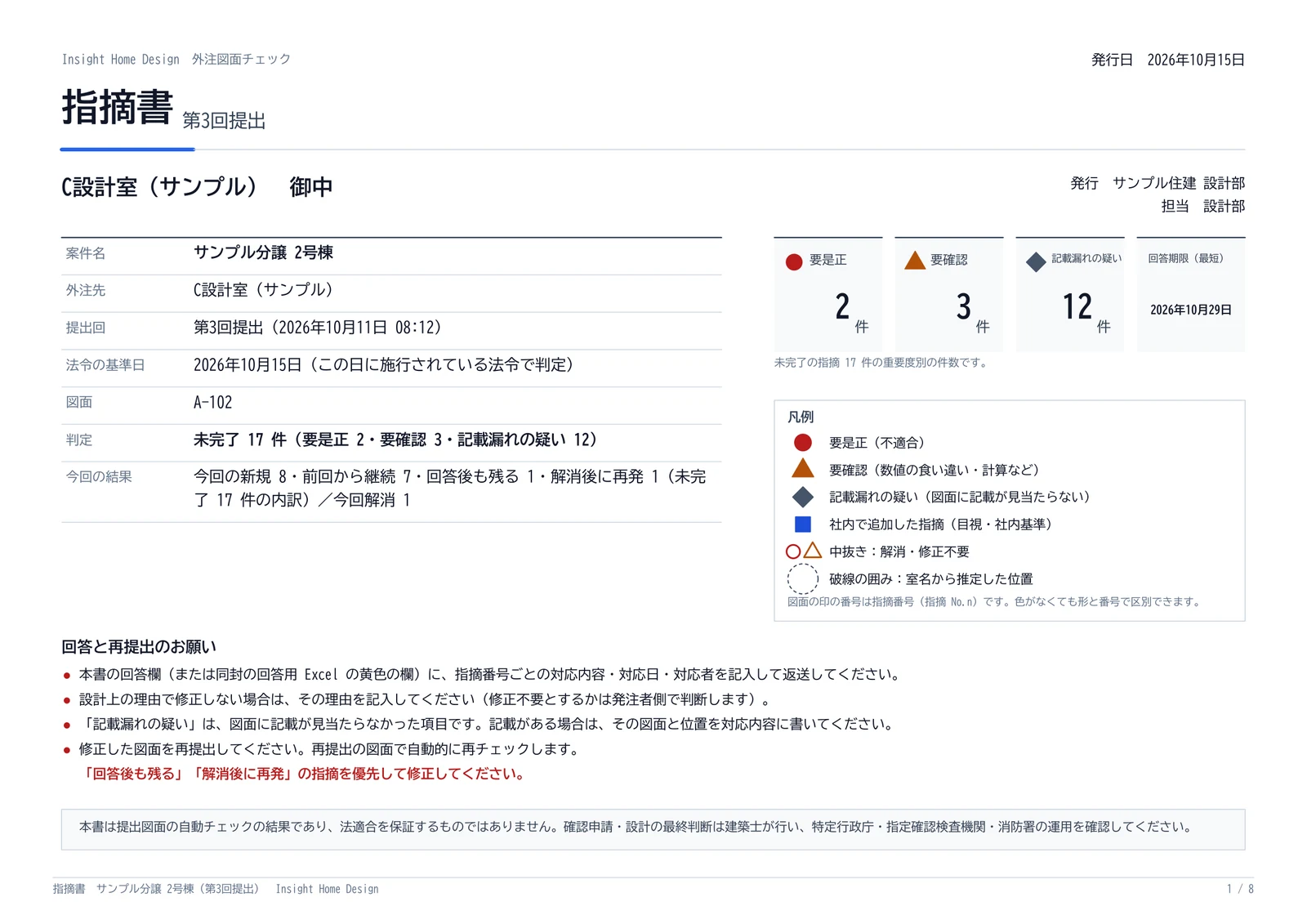
Findings report (PDF), page 1
Ready to send to the designer — counts, legend and the request for answers on one page.
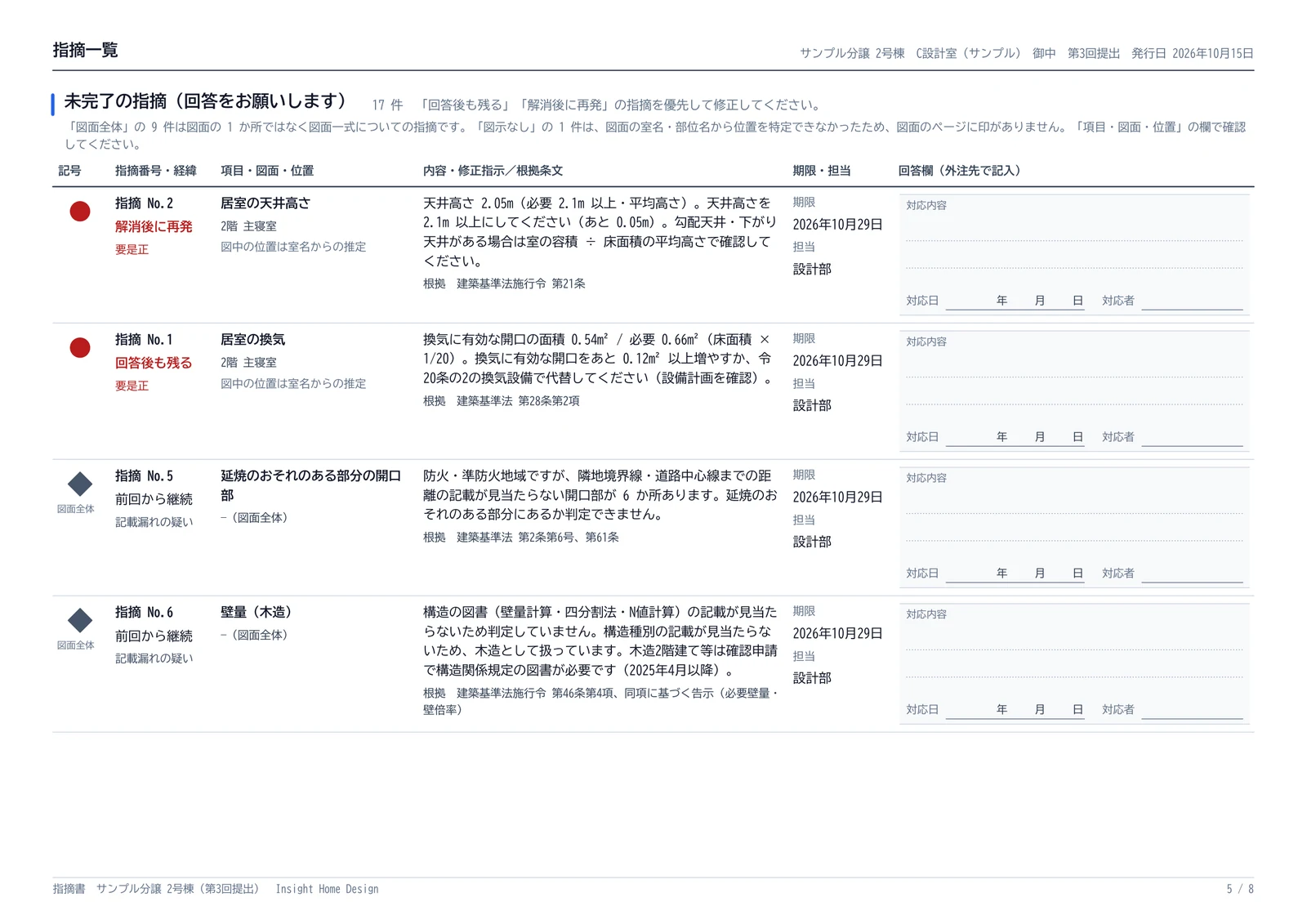
The list of findings
Each finding with what to fix, how, and the law — plus an answer box for the designer.
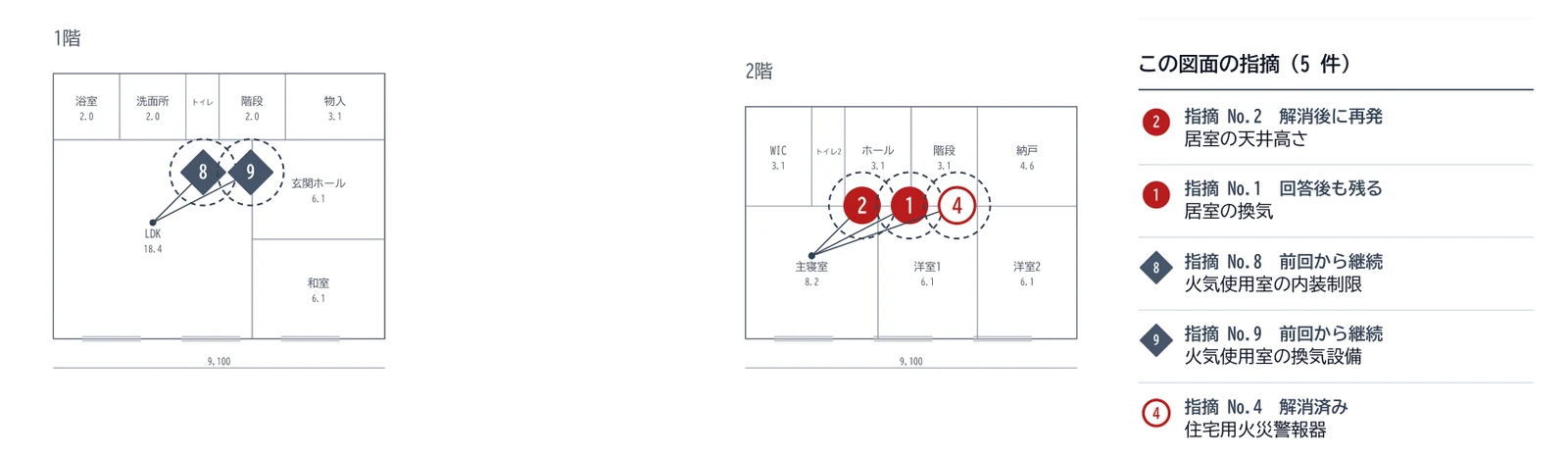
Marks on the drawing
Numbers and shapes show where each finding is — readable even without colour.
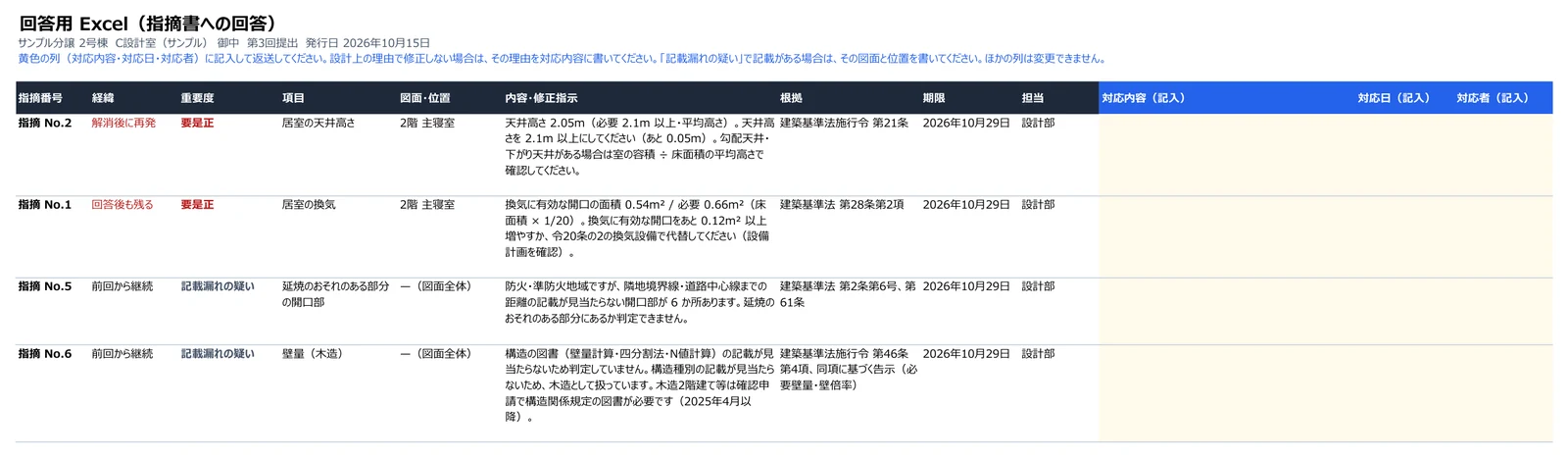
Answer sheet (Excel)
The designer fills in the yellow columns and sends it back; it goes straight into the same project.
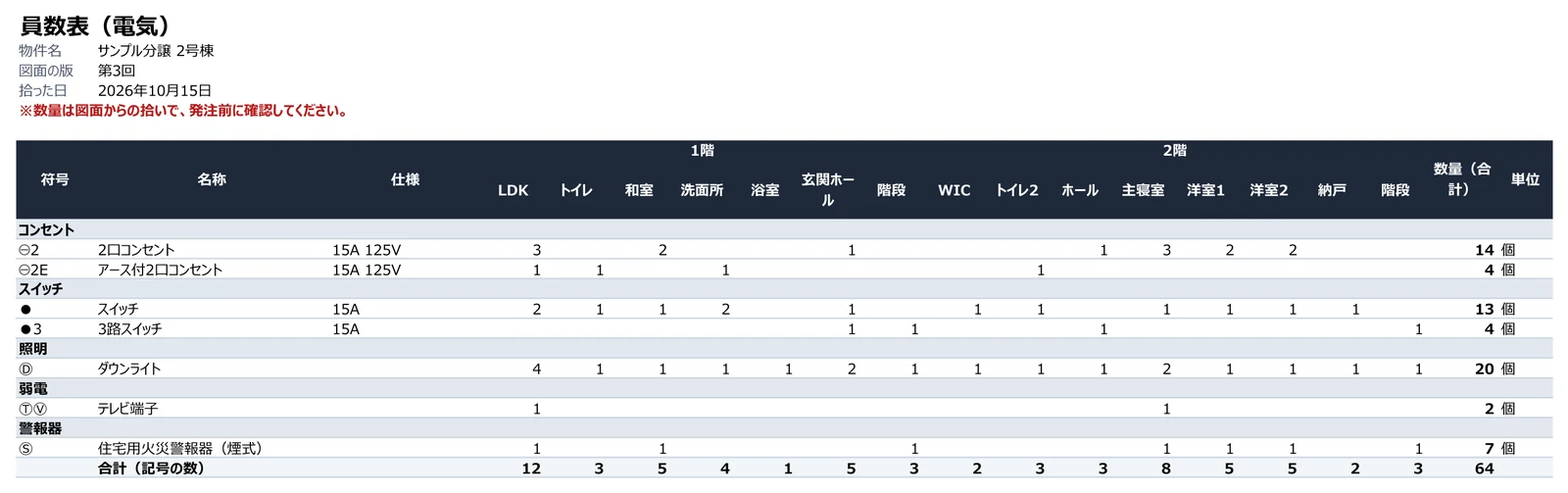
Take-off — electrical, by room
Outlets, switches and lights counted by floor and room from the same drawings, into Excel.
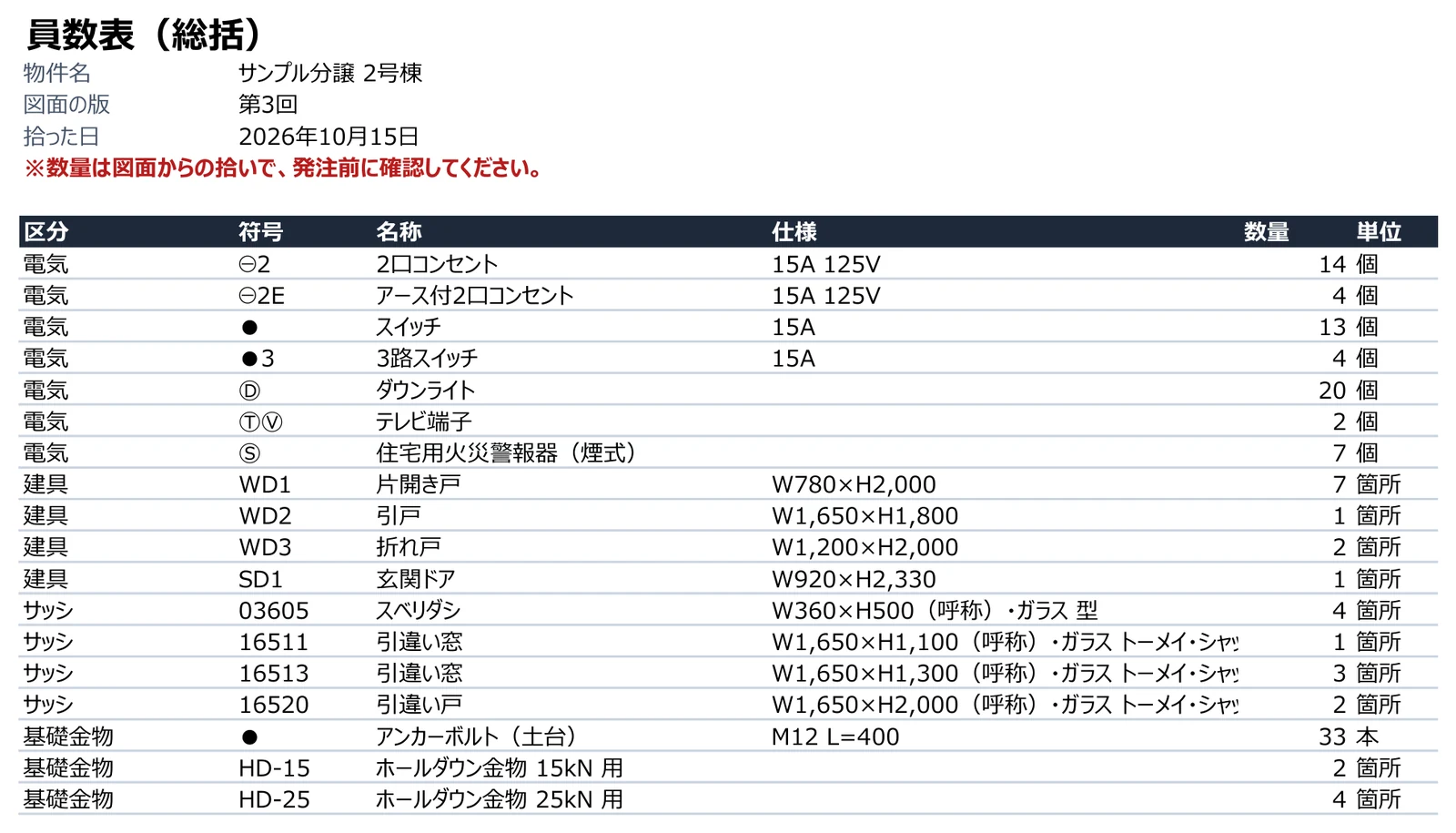
Take-off — summary
Electrical, doors, sashes and foundation hardware on one sheet. Anything not counted goes to "to be confirmed".

Differences from the request
Compared with the plan you handed over — e.g. "master bedroom 9 → 8.2 tatami".
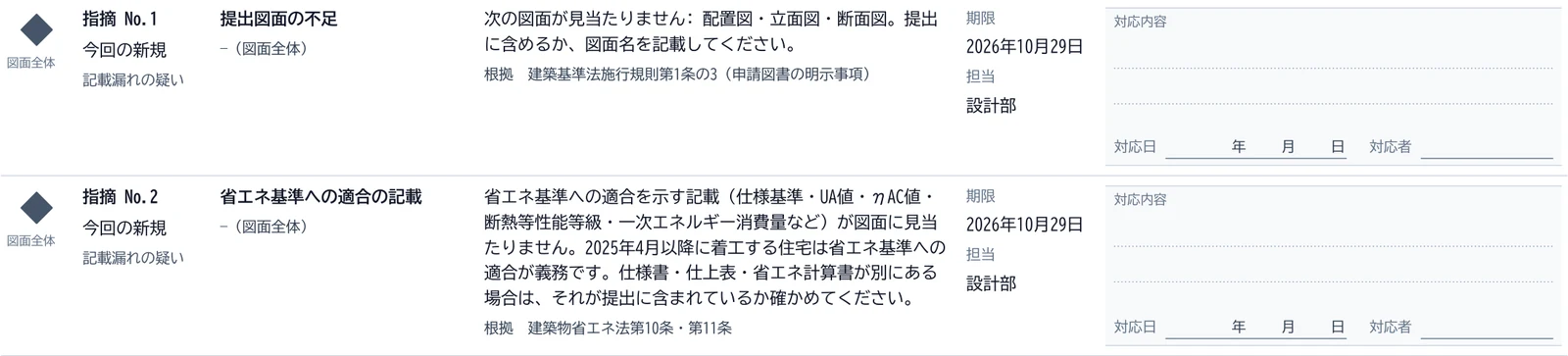
Possibly missing
What cannot be found on the drawings is not called a failure — it is listed as "possibly missing" for the designer to confirm.
VIDEOS
See how it works, on video.
Operation and explainer videos recorded on a fictional demo project — short, so you can start anywhere.
01Insight Home Design in 3 minutes(3:14)
The whole flow — check, return the report, follow up on resubmissions.
In Japanese
02Drop in drawings and check(2:08)
Drag Jw_cad, DXF or PDF onto Home; a project is created and checked.
In Japanese
03Review and fix findings (location and law)(3:04)
Pick a finding to jump to it on the drawing, with the law and values used.
In Japanese
04Make the report and answer sheet(1:35)
Create the findings report (PDF) and the Excel answer sheet for the designer.
In Japanese
05Take in answers and check the resubmission(2:02)
Answers and revised drawings go into the same project, sorted into new, continuing and recurring.
In Japanese
06Compare with the request and between drawings(2:06)
Differences in rooms, tatami counts and windows from the plan you handed over are flagged.
In Japanese
07Make the quantity take-off(1:33)
Count electrical, doors, sashes and foundation hardware into Excel from the same drawings.
In Japanese
08Checklist, company settings and working together(2:18)
The standard 49 items, plus your own checklist, title block and standard plans.
In Japanese
09Small fixes (Jw_cad-style operations)(1:57)
Edit text, dimensions and lines in place; the original is never overwritten.
In Japanese
10The AI option and its limits(1:51)
Off by default. What it helps with when on, and how to cap its use.
In Japanese
11Make a floor plan draft (in development)(3:13)
Read the site from the survey drawing, set conditions and get draft plans, with facts, assumptions and items to confirm.
In Japanese
12Edit the plan and export (in development)(2:49)
Edit the draft on the drawing; tatami counts and checks update at once. Export PDF and Jw_cad in one step.
In Japanese
Watch the YouTube playlist →In Japanese
HOW-TO VIDEOS
Each operation, on the real screen.
Recorded by actually operating the product. Click an operation to play from its start. All screens and projects are fictional samples.
86 videos(In Japanese)
01はじめての準備とホーム(12 min)
初めて使う日に知っておきたいこと。サンプル案件での練習、操作者の名前の設定、保存した案件の開き方、表示の大きさ、困ったときのヘルプの開き方。
02指摘を確かめる・直す・片付ける(16 min)
外注先の図面から出た指摘を確かめ、文の修正・除外・追加を行います。回答の記録、解消、修正不要の記録、担当と期限、絞り込みも扱います。
- 0:00指摘の詳細を読む
- 0:47記載漏れの疑いの指摘をまとめて見る
- 1:26前回からの変化で指摘を絞り込む
- 2:11指摘の根拠の条文を開く
- 2:53指摘の文を直す
- 3:36指摘の重要度を変える
- 4:10指摘を除外して元に戻す(画面では「指摘から外す」)
- 4:53図面の上で指摘を追加する
- 5:30指摘の操作を元に戻す
- 6:01指摘の項目・指摘箇所・根拠を直す
- 6:39手で追加した指摘を削除する
- 7:27キーボードで指摘を見ていく
- 8:10手で追加した指摘を確認して解消する
- 9:17外注先の回答を確かめる
- 10:13メールや電話で来た回答を記録する
- 11:03修正不要として記録し、取り消す
- 12:06判定保留を解除する
- 12:50担当と期限を付ける
- 13:37状態で指摘を絞り込む
- 14:26指摘を検索する
- 15:04指摘を順に見る
03図面の見方・赤入れ・図面の編集(7 min)
図面の動かし方と切り替え、凡例、指摘の印の置き直し、赤入れ、チェックせずに図面を追加する方法、図面の小さな修正。
04指摘書・回答・案件のやり取りと集計(9 min)
指摘書と回答用Excel、外注先の回答の取り込み、修正図面の取り込み、依頼図とチェックリスト、員数表、社内確認リストと集計。
05間取りプランと規格プラン(開発中)(12 min)
間取りプランの条件の入力(申送り・役所調査・敷地)、案の修正と書き出し、規格プランの登録と検索。間取りプランは開発中の機能で、作られるのは下書きです。
- 0:00営業の申送りから条件を入れる
- 0:43役所調査の結果から地区の制限を入れる
- 1:26現況図が無いときに敷地を入れる
- 1:58Excelのひな形で条件を入れる
- 2:38現況図を開いて敷地の辺を確かめる
- 3:36間取りプランのはじめての設定をする
- 4:33過去のプラン図から案を始める
- 5:17間取りプランの案を選んですべての判定を見る
- 6:02直す所の一覧と右クリックのメニューを使う
- 6:46作った案を規格プランに登録する
- 7:25間取りプランの部屋の帖数を変える
- 8:01間取りプランの直しを元に戻す
- 8:23間取りプランをPDFとJw_cadに書き出す
- 8:54図面から規格プランを登録する
- 9:47規格プランを条件で探す
- 10:32規格プランの項目を直して保存する
- 11:22規格プランをExcelでまとめて直す
06会社の設定・法規集・AIオプション(6 min)
会社の設定と共有の置き場、法規集で条文を開く・検索する、設計条件の確認、AIオプション(既定はオフ)。
HOW IT WORKS
Drop. See. Confirm. Return.

1Drop
Drag the drawings onto Home; a project is created and checked.
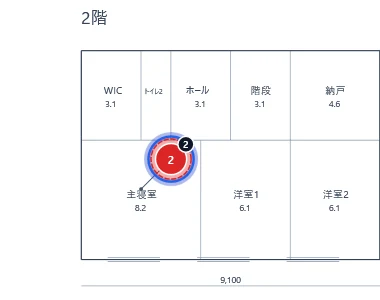
2See
Pick a finding to jump to its place on the drawing.
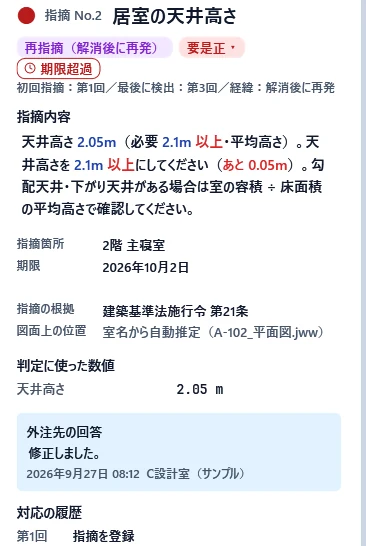
3Confirm
Check the law and the values used.
4Return
Send the report and answer sheet; answers come back into the same project.
FLOOR PLAN DRAFTS (IN DEVELOPMENT)
Floor plan drafts: get a draft, then fix it on the drawing.
From the site survey drawing (.jww) and the conditions (law, product rules, surroundings), it makes draft floor plans. It first works out the height range the site allows — from the road slope, the north-side slope, the height district and the absolute height limit — and keeps the roof inside it; if nothing fits, the draft says so as “to be confirmed”. Designers finish them; the draft is a starting point for thinking.
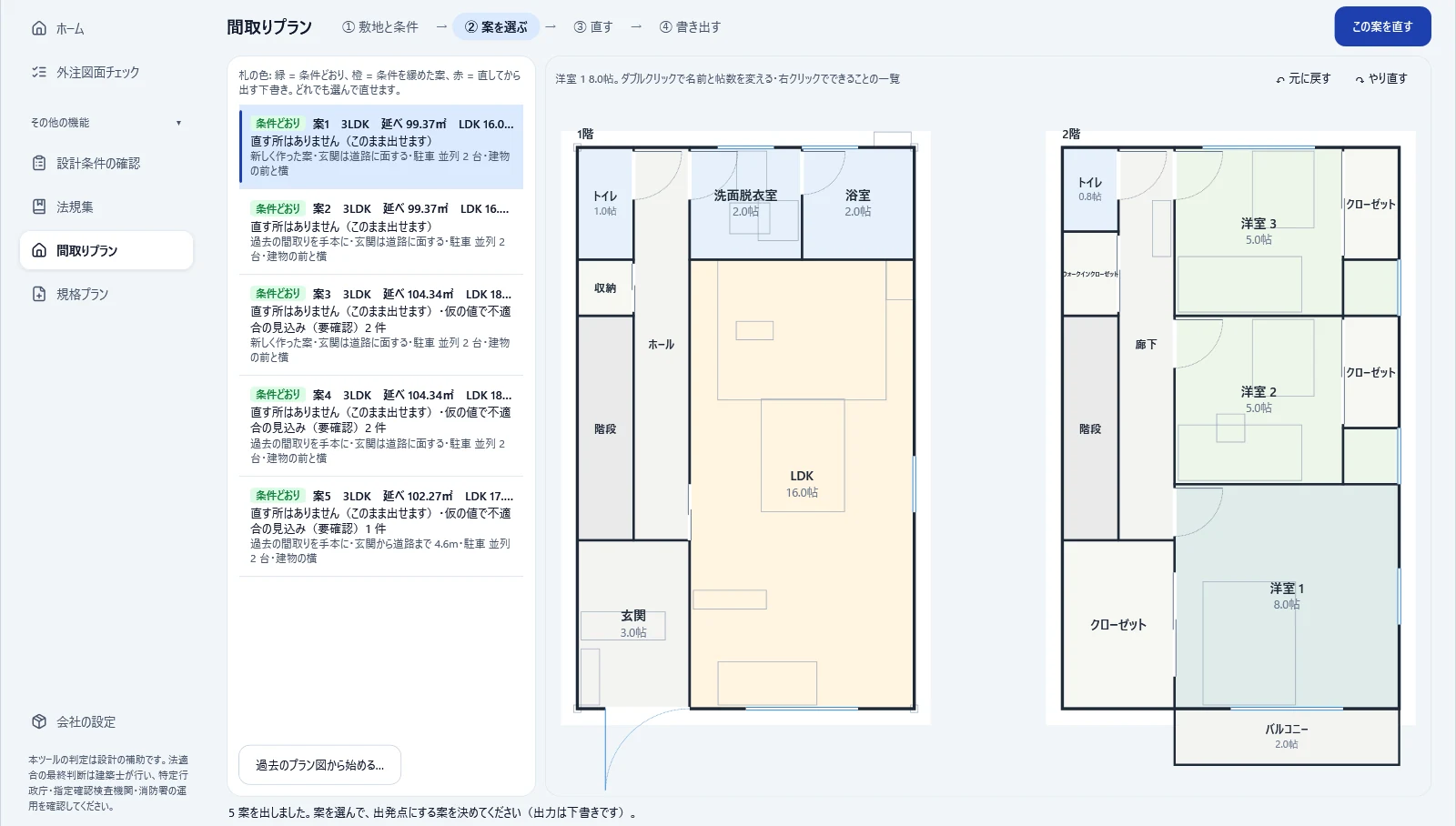
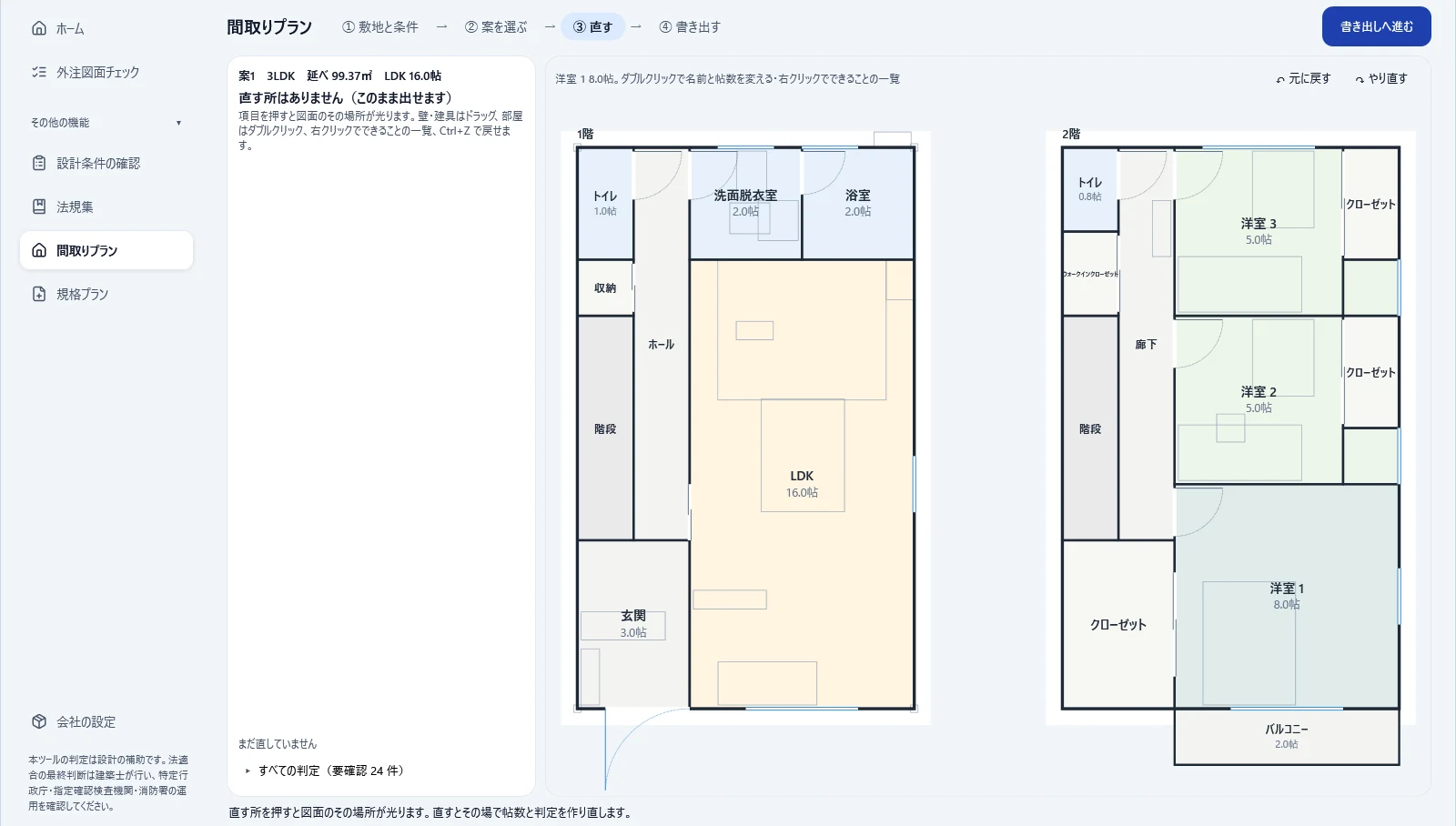
- Drafts are labelled by colour: as requested / with a condition relaxed (the heading says which) / needs fixing before use.
- Drag walls and openings, double-click a room. Each change rebuilds the tatami counts, the area table and the checks on the spot. Ctrl+Z undoes.
- What was read as fact, what was assumed and what needs confirming are written on the drawing and in the check table.
- Draft checks include whether the roof (eaves and verges) stays inside the site. The road-slope setback is measured from whichever is closer to the road: the eaves or the tip of a second-floor balcony.
- On sites facing two or more roads, the area where a narrower road counts as having the wider road's width (Building Standards Act Enforcement Order art. 132(2)) is judged as the article states — in the drawing check as well.
- Export to PDF and Jw_cad (.jww) in one go. The .jww can go straight to your outside designer as the request drawing.
- Register your company's standard plans and the drafts follow your own patterns.
What comes out is a draft. Designers finish it, and final judgement is made by a licensed architect.Version 1.0.0 (Japanese screens). The site drawing is fictional.
FLOOR PLANS
Make floor plans for flyers and listing sites from your drawings, and adjust the look.
Since version 1.0.1, “Floor plans” is in the left menu. Real-estate agents and store sales staff can use it without going through the drawing check screens. Start from a blank sheet, an underlay, a plan drawing or a floor plan draft; adjust the look with styles, colors, floor patterns, tatami, parts and your logo; then export to images, PDF and more.
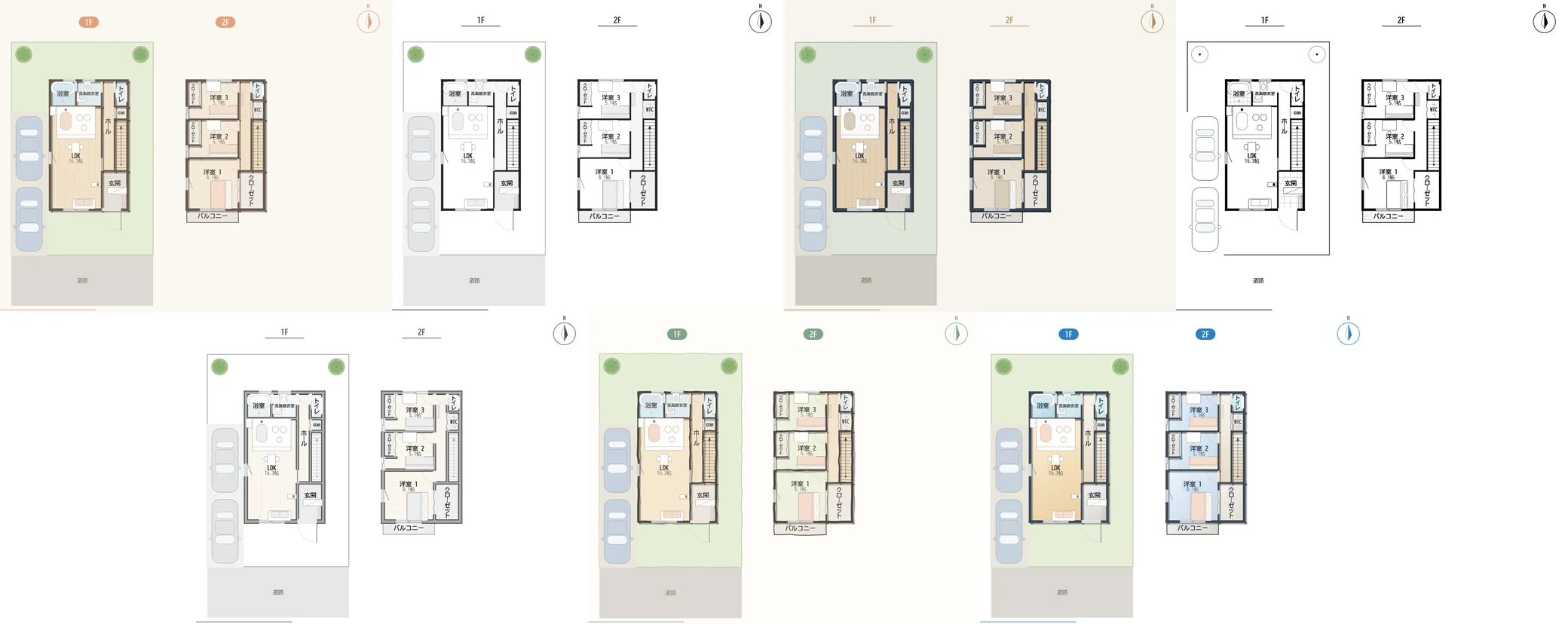
- Four ways to start: blank / trace an underlay (image, PDF, Jw_cad, DXF) / automatically from a plan drawing (Jw_cad, DXF, PDF) / from a floor plan draft
- Six looks (soft, simple, premium, monochrome, gray walls, hand-drawn); per-room colors and floor patterns; tatami layout for Japanese-style rooms
- Room names, jō counts, floor and total areas and the north arrow are filled in automatically; add notes, your company name and logo
- 61 parts (kitchen, bath, furniture, cars, plants and more); add your company's own parts and default colors
- Export to PNG, JPEG, BMP, GIF, TIFF, PDF, SVG and EPS; high resolution (4K/8K) and to-scale printing (1/50, 1/100, 1/200)
- Before export, a side panel shows guideline checks for Japanese real-estate ads (jō count at 1.62 m² per jō, how to label rooms without windows). They are guides for you to confirm, and nothing is drawn on the plan
WHAT YOU DECIDE
What you decide.
What the law decides, the product carries. Your own design standards are yours to set, and the product checks against them. Design judgement stays with the designer, as it always has.
Ready from day one (nothing to decide)
- The standard checklist (49 items)
- Checks against the law (with the article and the calculation)
- Matching drawings against each other (plans, area tables, elevations, envelope calculations, foundation plan)
- Take-offs (outlets, switches, doors, sashes)
What you decide when tailoring it to your company (company settings)
- Your drawing checklistThe items your team already uses, shown alongside the standard 49.
- Your list of outside designersTo allow for each designer's drawing conventions and keep the names used in the record consistent.
- 10–20 past submissionsUsed to verify the reading of your drawings and compare with your own checks.
- Your floor-plan design standardsMargins from the boundary, the width of the path to the entrance, minimum LDK and bedroom sizes, circulation, parking dimensions.
- Title blocks, parts and standard plansYours, used when writing out findings reports and drawings.
- Local ordinances and height districts in your areaValues for municipalities the product does not yet carry.
How to decide them is in the onboarding guide (PDF). It runs on the standard values at first, so you can decide after the trial. Open the onboarding guide
RESEARCH & KNOWLEDGE
Built on research from Japan and abroad, and on the text of the law.
We surveyed research on drawing recognition and code checking and chose the methods that suit this product — with the law texts and knowledge covering the second-class architect exam, all with sources. The law texts, appended tables included, can be searched in the law library. The product checks e-Gov (Japan's national law database) for amendments; the text is replaced only when you choose “Update” — never on its own. Findings that rest on an amended law are flagged “to be confirmed”.
- research papers surveyed
- 240
research papers surveyed
- laws in full text (4,003 articles), plus the reference values of 15 notifications
- 21
laws in full text (4,003 articles), plus the reference values of 15 notifications
- design-knowledge articles
- 299
design-knowledge articles
88.5%
For reference: the AI option (chat assistant)
Correct answers when the chat assistant, using the shelf and law texts, took the 2026 (Reiwa 8) second-class architect written exam (87 questions, excluding figure questions). This is not a measure of drawing-check accuracy.
Counts are our own survey (version 1.0.0, October 2026; papers from 10 surveys with 898 sources; the shelf covers all 271 topics in the exam guide). The exam figure is an internal measurement (2026-10-10) of the product's chat assistant (the AI option), answering published questions from Japan's second-class architect written exam with access to the product's shelf and law texts. Drawing checks do not use AI; they are calculated by the product. The reference figure (88.5%) is Reiwa 8 (2026; 87 questions excluding figure questions), set after the AI's training period. On 316 questions from Reiwa 5–8 (excluding figure questions and part of Reiwa 5): 90.5%. A comparison without the shelf and law texts has not been measured yet.
Keep your CAD
Jw_cad, DXF and PDF are read as they are. Drawing workflows stay the same.
Unsure means "to be confirmed"
Estimates are never reported as compliant. Figures and pass/fail come from calculation.
AI option is off by default
Checks, reports and take-off all work with it off.
Japanese, English, Chinese, Vietnamese
The screens come in four languages. Reports and answer sheets can be bilingual, with the Japanese original beside the translation. Finding texts, sheet headings and screens are translated; your checklist items, law names and room names stay in Japanese.
Windows 10 / 11 (64-bit). Drawings and projects stay on your PC and shared folder. Version 1.0.1; features and screens may change in later versions.
DOCUMENTS
The documents open right here.
No sign-up. The product overview, the onboarding guide and the comparison with other tools, as PDF, as they are.
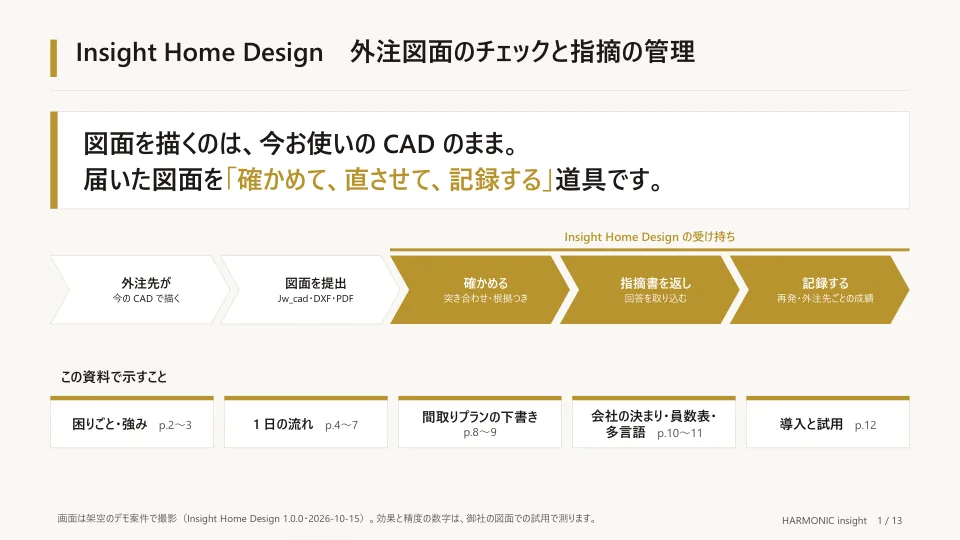
Product overview
The problems and the strengths, a day in the design team, floor-plan drafts, company rules, take-offs and languages, onboarding and trial. 13 slides to pass around.
PDF · 13 pages · 1.9 MB · October 2026Japanese edition
Open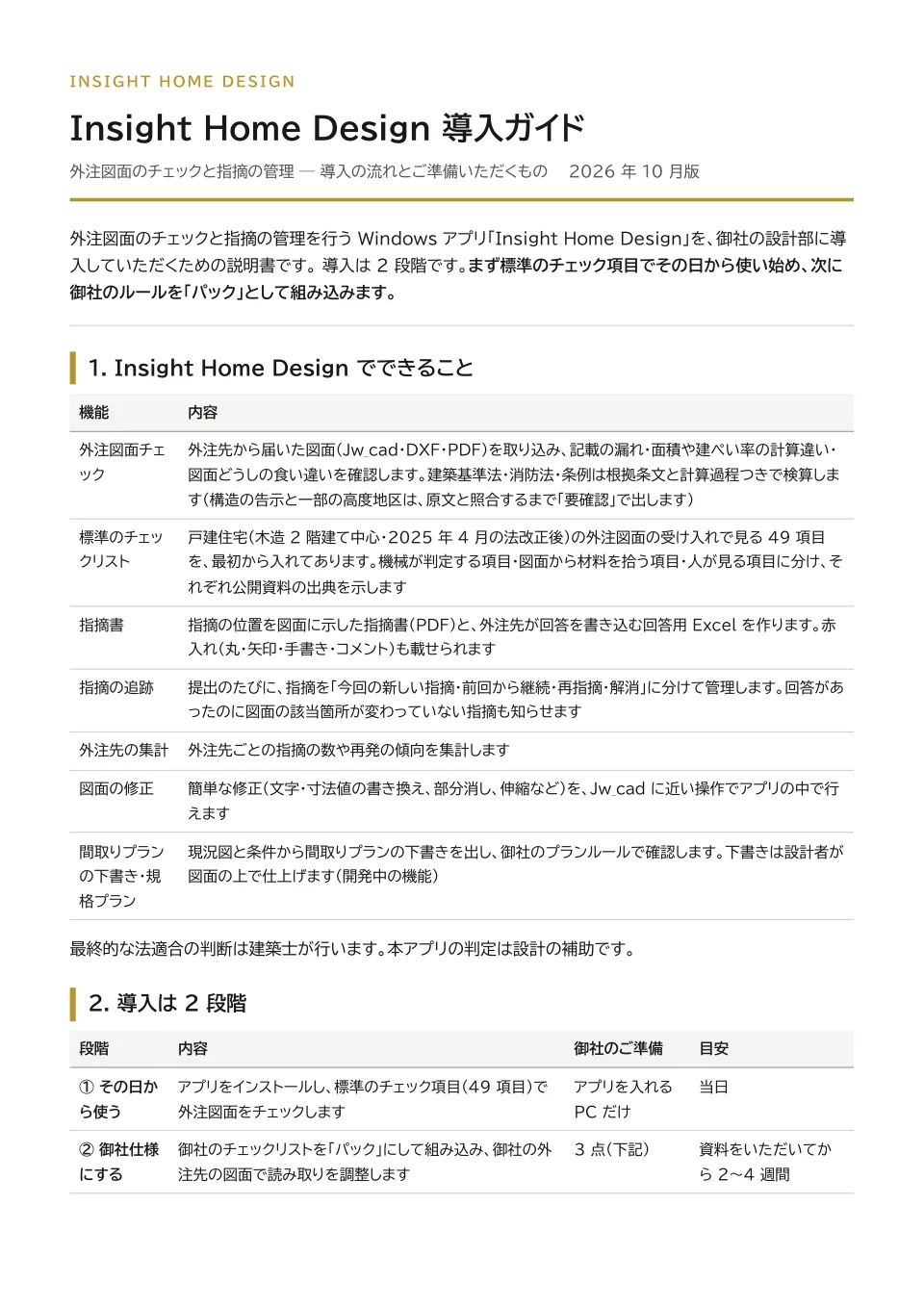
Onboarding guide
The standard 49 items from day one, and the pack that tailors it to your company. The 3 things to prepare, what you decide, where the pack goes, how data is handled.
PDF · 6 pages · 0.2 MB · October 2026Japanese edition
Open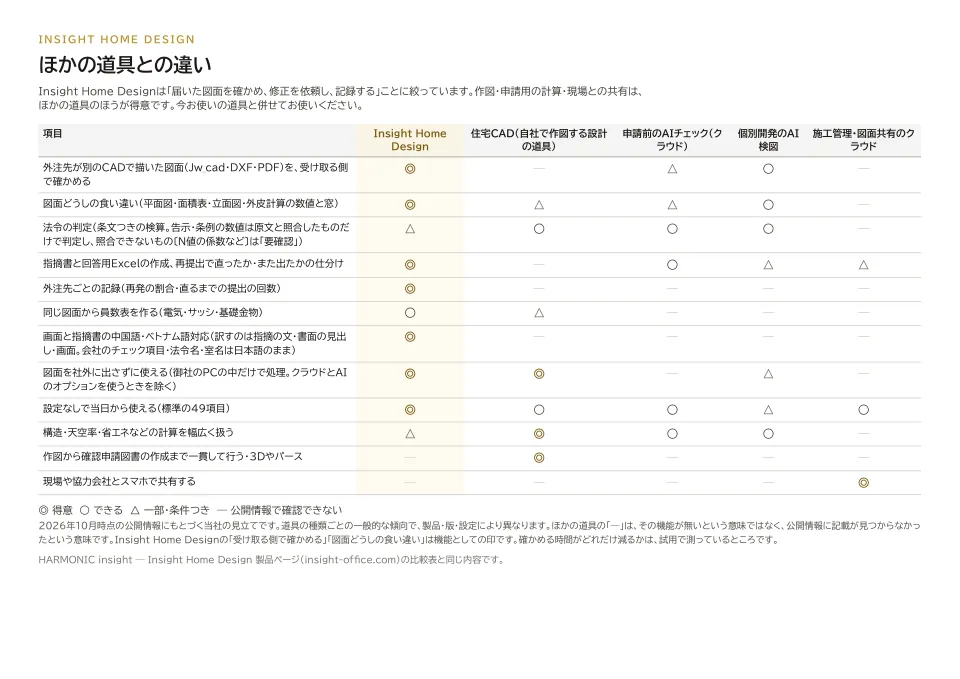
How it differs from other tools
The comparison table on this page, on one sheet. What each type of tool is good at and not good at.
PDF · 1 page · 0.1 MB · October 2026Japanese edition
OpenScreens were captured on a fictional demo project. The documents describe version 1.0.0; contents may change between versions.
TRIAL
Try it on your PC, with your own drawings.
Download the free trial and try it with your own drawings. Every feature works for 30 days after installation (no sign-up). For deployment questions, purchase and a quotation, please use the form.
- Your drawings are handled only on your own PC; they never reach us (except when you use the cloud option, enabled on request, or the AI option, off by default and run with your own key).
- The AI option is off by default; checks, reports and take-off all work with it off.
- Final judgement is made by a licensed architect; the report is an aid to checking.
If you cannot download it (for example, because of company restrictions), please contact us.
Current version 1.0.1Version history
You may write in English, Chinese or Vietnamese.
On your PC, with your drawings.
Your drawings stay on your PC and never reach us (except when the cloud or AI options are used). Questions and trial requests via the form.
The free trial gives you every feature for 30 days after installation (no sign-up). Purchase and pricing are by quotation.